Teams holds anonymous joiners in the lobby and increasingly gates them behind a captcha. Signing the bot into a real Microsoft 365 account removes both. Here is the API, the tenant setup, and why Teams works differently from Meet.
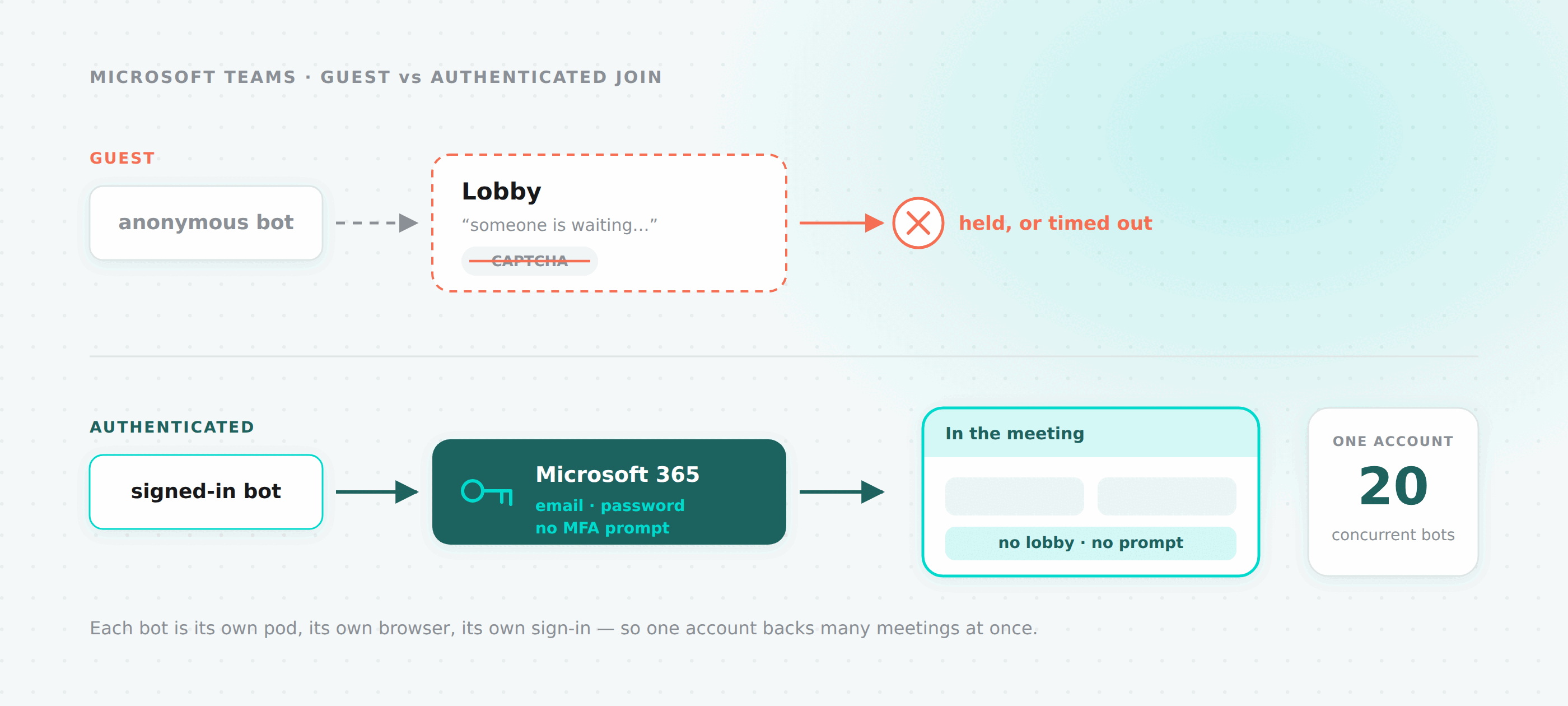
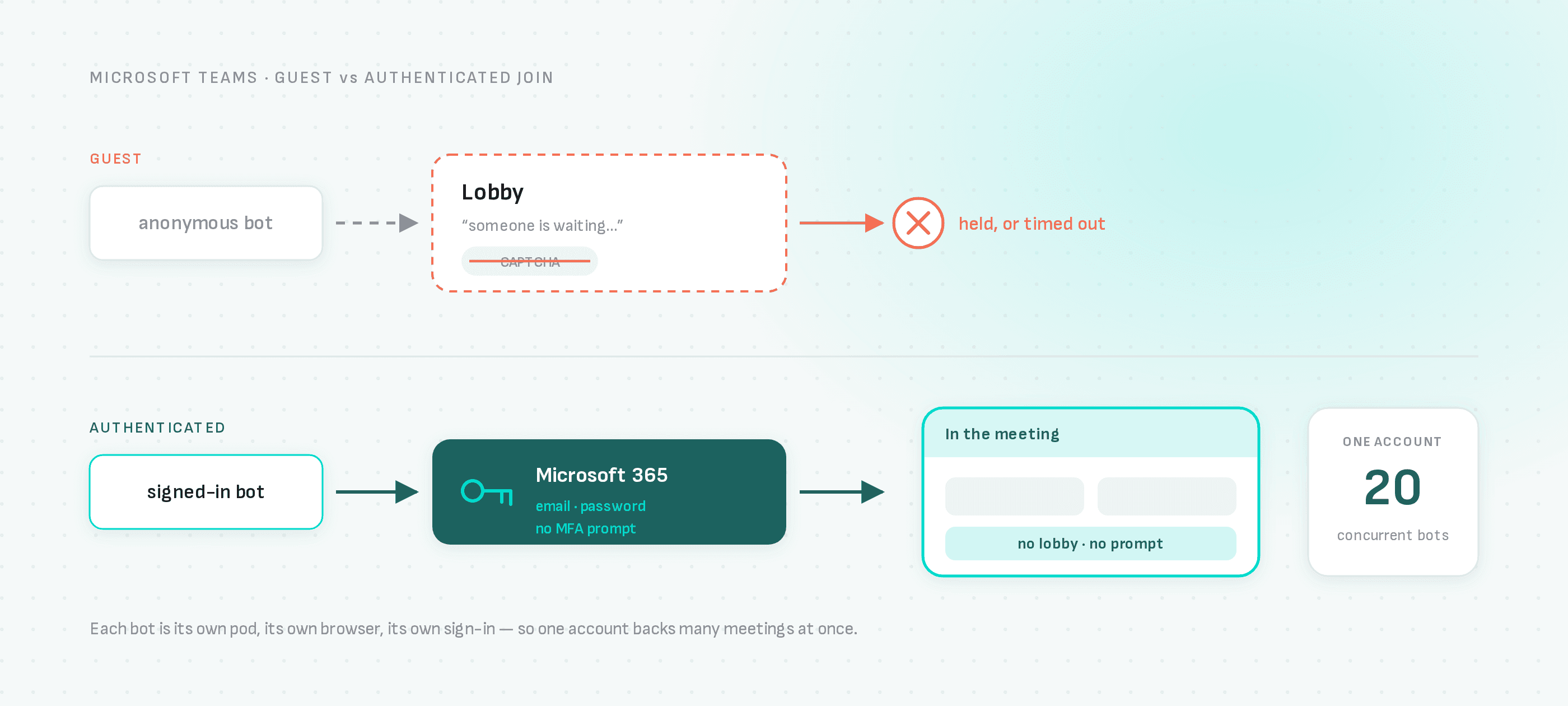
An anonymous bot joining a Teams meeting goes into the lobby. Someone has to notice the "someone is waiting" prompt and let it in. If nobody does, the bot times out and you get no recording. Microsoft has also been steadily adding captcha challenges to the guest join path, which a headless browser cannot solve.
A bot signed into a real Microsoft 365 account skips all of that. No lobby, no prompt for the host to miss, no captcha. Its name in the participant list comes from the account.
Opt-in per bot. Leave teams_config out and your bots keep joining as guests, unchanged.
Why this is not SAML
We shipped authenticated Google Meet bots using SAML, with our API acting as the identity provider for a Workspace you own. The obvious question is why Teams does not work the same way.
Microsoft offers no equivalent path. Getting Entra ID to accept a third-party IdP means full federation of the tenant, which is a much heavier commitment than uploading a certificate to a Legacy SSO profile, and not something we would ask a customer to do. So Teams authenticates the way a person does: email, then password, typed into login.microsoftonline.com.
That single difference drives everything else:
| Google Meet | Microsoft Teams | |
|---|---|---|
| Mechanism | SAML assertion, we act as IdP | Username and password |
| Workspace resource holds | Domain, certificate, private key | Tenant domain only |
| Credential leaves our servers? | No. We sign an assertion server-side. | Yes. The bot fetches it once over TLS. |
| Secret stored | private_key_pem | password, encrypted |
| Failure mode | Certificate mismatch, suspended user | Bad password, MFA prompt |
The Teams bot has to hold the actual password at join time, because there is no way to type it otherwise. It fetches it once from an authenticated resolve endpoint keyed by a short-lived session id, in the same shape as how the Zoom bot fetches its OBF token. The password is encrypted at rest with AES-256-GCM and is never returned by any read endpoint.
The API
Same two-level shape as Meet: a workspace representing one Microsoft 365 tenant, and logins hanging off it.
POST   /v2/teams-workspaces
GET    /v2/teams-workspaces
GET    /v2/teams-workspaces/:workspace_id
PATCH  /v2/teams-workspaces/:workspace_id
DELETE /v2/teams-workspaces/:workspace_id

POST   /v2/teams-logins
GET    /v2/teams-logins
GET    /v2/teams-logins/utilization
GET    /v2/teams-logins/:credential_id
PATCH  /v2/teams-logins/:credential_id
DELETE /v2/teams-logins/:credential_id
The workspace is thin, because there is no certificate to hold. It exists so that one tenant's accounts group together and can be disabled as a unit:
{
  "name": "Contoso Production Tenant",
  "domain": "contoso.onmicrosoft.com"
}
Accounts on any of the tenant's verified domains can be added to it.
Then each account:
{
  "workspace_id": "f0e1d2c3-b4a5-6789-0123-456789abcdef",
  "name": "Teams Bot Pool — Account 1",
  "email": "bot1@contoso.onmicrosoft.com",
  "password": "...",
  "email_group": "bots@contoso.onmicrosoft.com"
}
password is write-only. Reading the login back gives you everything except the password:
{
  "credential_id": "a1b2c3d4-e5f6-7890-abcd-ef1234567890",
  "workspace_id": "f0e1d2c3-b4a5-6789-0123-456789abcdef",
  "name": "Teams Bot Pool — Account 1",
  "email": "bot1@contoso.onmicrosoft.com",
  "email_group": "bots@contoso.onmicrosoft.com",
  "state": "active",
  "last_error_message": null,
  "last_error_at": null,
  "last_used_at": "2026-08-10T14:22:03.000Z",
  "active_session_count": 3,
  "extra": null,
  "created_at": "2026-08-01T09:12:44.000Z",
  "updated_at": "2026-08-10T14:22:03.000Z"
}
Rotating a password is a PATCH with the new one. Nothing else changes and running bots keep their slots.
On a bot
{
  "meeting_url": "https://teams.microsoft.com/l/meetup-join/...",
  "bot_name": "Recording Bot",
  "teams_config": {
    "email_group": "bots@contoso.onmicrosoft.com",
    "fallback": "anonymous"
  }
}
teams_config resolves identically to meet_config:
| What you send | What happens |
|---|---|
null (the default) | Anonymous guest join. |
{ "email_group": "X" } | Round-robin across active logins in group X. |
{ "credential_id": "Y" } | Pin login Y. |
| Both, with a non-empty group | email_group wins. |
{ "email_group": "" } alone | Round-robin across all active logins on the team. |
{ "email_group": "", "credential_id": "Y" } | Login Y is pinned. An empty group is not a group, so credential_id takes over. |
On saturation, fallback: "fail" returns FST_ERR_TEAMS_LOGIN_UNAVAILABLE with a 503 and fallback: "anonymous" drops back to a guest join. For Teams specifically, "anonymous" is a more reasonable default than it is for Meet, because a guest join still often works, it is just slower and less reliable.
How many bots can one account run at once?
This comes up constantly, because everyone has seen Teams say you can only be active in one meeting and must put the others on hold.
That limit is per client session, not per account. It comes from one Teams app instance owning one audio stack. Microsoft's published limits page has no per-user cap on concurrent meetings, and their own guidance for being in two meetings at once is to use a second device or a second browser profile.
Every MeetingBaaS bot is its own pod, with its own browser and its own fresh sign-in to login.microsoftonline.com. Each bot is a separate client session. One account can back many bots in different meetings simultaneously.
The default cap per login is 20 concurrent sessions, and GET /v2/teams-logins/utilization reports against it:
{
  "logins_total": 3,
  "logins_active": 3,
  "logins_invalid": 0,
  "concurrent_sessions": 41,
  "concurrent_capacity": 60,
  "utilization_pct": 68,
  "by_email_group": [
    { "email_group": "bots@contoso.onmicrosoft.com", "logins": 3, "concurrent": 41, "capacity": 60 }
  ]
}
The real ceiling is not Teams, though. It is Entra ID. N simultaneous sign-ins of one account from N different pod IPs is exactly the pattern risk-based Conditional Access is built to flag, and when it fires you get an MFA challenge that a headless browser cannot answer. If you are hitting saturation, raising the per-account cap is worth trying before provisioning more accounts, but measure at 5, then 10, then 20 on a single account and watch for sign-in failures rather than jumping straight to a high number.
Tenant setup
This is the part that needs care, so read the whole section before changing anything.
Use a dedicated tenant
Create the bot accounts in a tenant of their own, for example bot1@contoso-bots.onmicrosoft.com. Business Basic is enough.
Authenticated bots need account-level settings that you should not apply to a tenant real people sign into. A separate tenant keeps that blast radius at zero. This is not a nice-to-have, it is the precondition for everything below.
Make sure the bot accounts do not get an MFA prompt
A fresh tenant ships with Security Defaults on, which forces the "Let's keep your account secure" registration page at first sign-in. A headless browser cannot get past it, and it is the single most common reason a Teams login fails.
There are two ways through, and which one you pick depends on the tenant:
Dedicated bot tenant, no human accounts. Turn Security Defaults off tenant-wide: entra.microsoft.com → Identity → Overview → Properties → Manage security defaults → Disabled.
Tenant with human accounts in it. Leave MFA on. Put the bot accounts in a group, and exclude only that group from your "require MFA" Conditional Access policy. This needs Entra ID P1. Slower to set up and much better hygiene.
Either way, also check legacy per-user MFA is Disabled for the bot accounts, and turn off the Authentication methods registration campaign so it does not reintroduce the prompt later.
The end state you are aiming for: signing in as a bot account gives you email, password, then "Stay signed in?", and nothing in between.
Sign in once, by hand
Log into each bot account manually in a normal browser and clear whatever first-run interstitials Microsoft shows. Same reasoning as the Workspace onboarding step on the Meet side: the first login is interactive whether you like it or not, so get it out of the way before a bot needs the account.
Register the workspace and logins
curl -X POST https://api.meetingbaas.com/v2/teams-workspaces \
  -H "x-meeting-baas-api-key: $API_KEY" \
  -H "Content-Type: application/json" \
  -d '{"domain": "contoso-bots.onmicrosoft.com"}'
Then one POST /v2/teams-logins per account.
What failure looks like
A sign-in that fails in a way that will keep failing flips the login to invalid and stops it being assigned. The three causes:
| Cause | What it means |
|---|---|
| Bad credentials | The password changed, or was typed wrong on create. |
| MFA required | Security Defaults, a Conditional Access policy, or a risk detection is challenging the account. |
| Timeout | Microsoft was slow or the flow stalled. |
Timeouts are treated as transient and do not invalidate anything. The other two do, and record last_error_message, last_error_at, and failure_data with the bot that hit it.
Re-enable once you have fixed the cause:
PATCH /v2/teams-logins/:credential_id
{ "state": "active" }
If an account starts failing with MFA required after working fine for weeks, that is almost always risk-based Conditional Access reacting to your concurrency, not a changed password. Look at the sign-in logs in Entra before you go resetting anything.
Deleting a login with sessions in flight returns 409. Slots are released when the bot process exits, including when it crashes, so a dead pod does not permanently leak capacity.
Related
- Authenticated Google Meet Bots — the same problem, solved with SAML, and why the two differ
- Meeting BaaS API reference
If you are working out how many accounts your volume needs, or whether Conditional Access exclusion is going to fly with your security team, we are happy to talk it through.